Live Photo “Motion Not Available” on the lock screen — the 30-second fix
Updated 2026-07-31
Download 2Live freeLive Photo “Motion Not Available” on the lock screen — the 30-second fix







You picked a Live Photo for your lock screen, tapped it, and iOS threw up a grey card: “Motion Not Available — Motion from this Live Photo is not supported as a wallpaper.” The photo still sets fine, it just refuses to move.
Good news: the Live Photo isn't broken, and you don't need to re-download or re-convert it. Nine times out of ten iOS just doesn't like the frame that's currently set as the key photo — and you can change that in the Photos app in about 30 seconds.
Step by step
- 1
What the error looks like
iOS takes the still image and greys out the motion: “Motion from this Live Photo is not supported as a wallpaper.” Tap Cancel and head to the Photos app — the file isn't broken, and nothing needs re-downloading or re-converting.
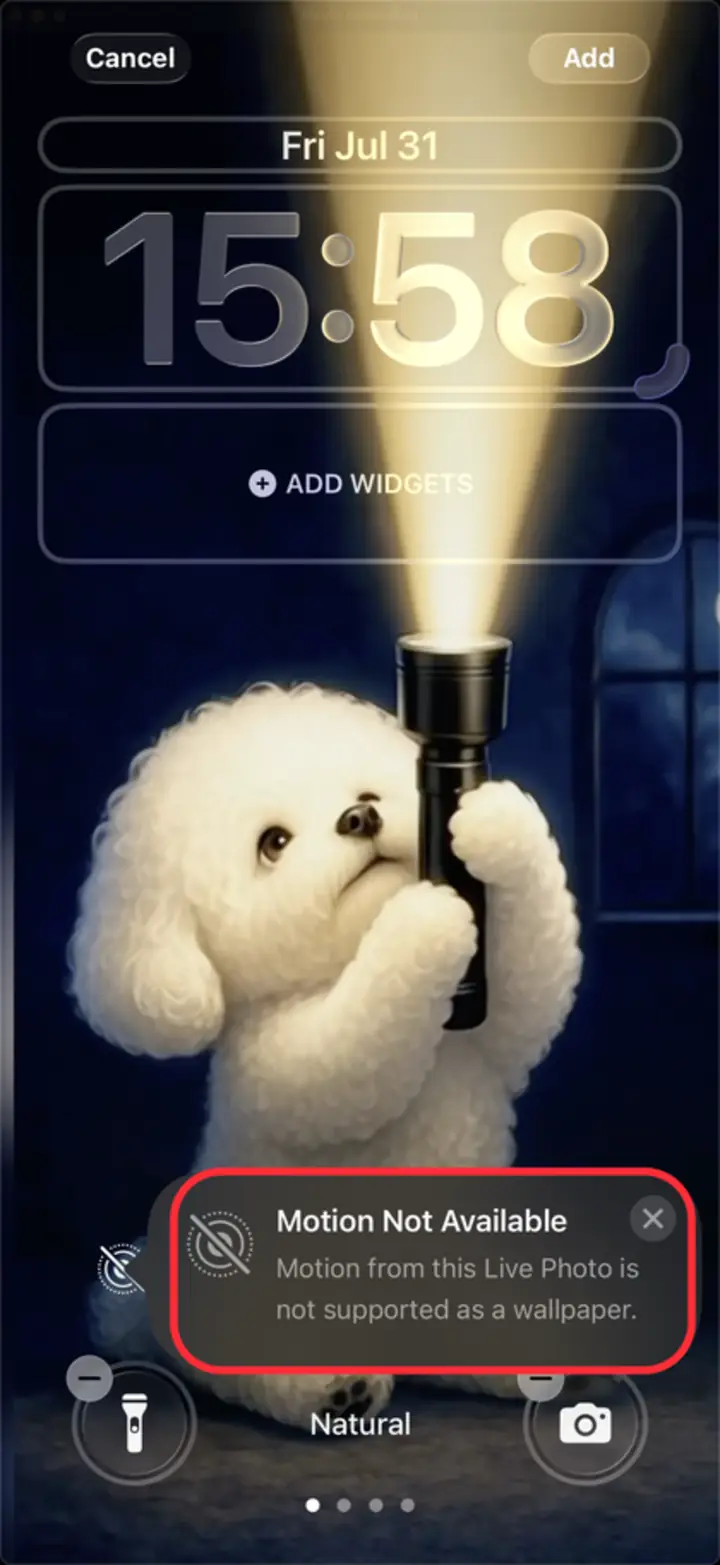
The error card: the still sets, the motion doesn't. - 2
Open it in Photos and tap Edit
Find the Live Photo in your library and open it full-screen. Check the “LIVE” badge is in the top-left first — no badge means it was never a Live Photo, and no key-frame change will help. Then tap the Edit button, the sliders icon in the bottom bar.
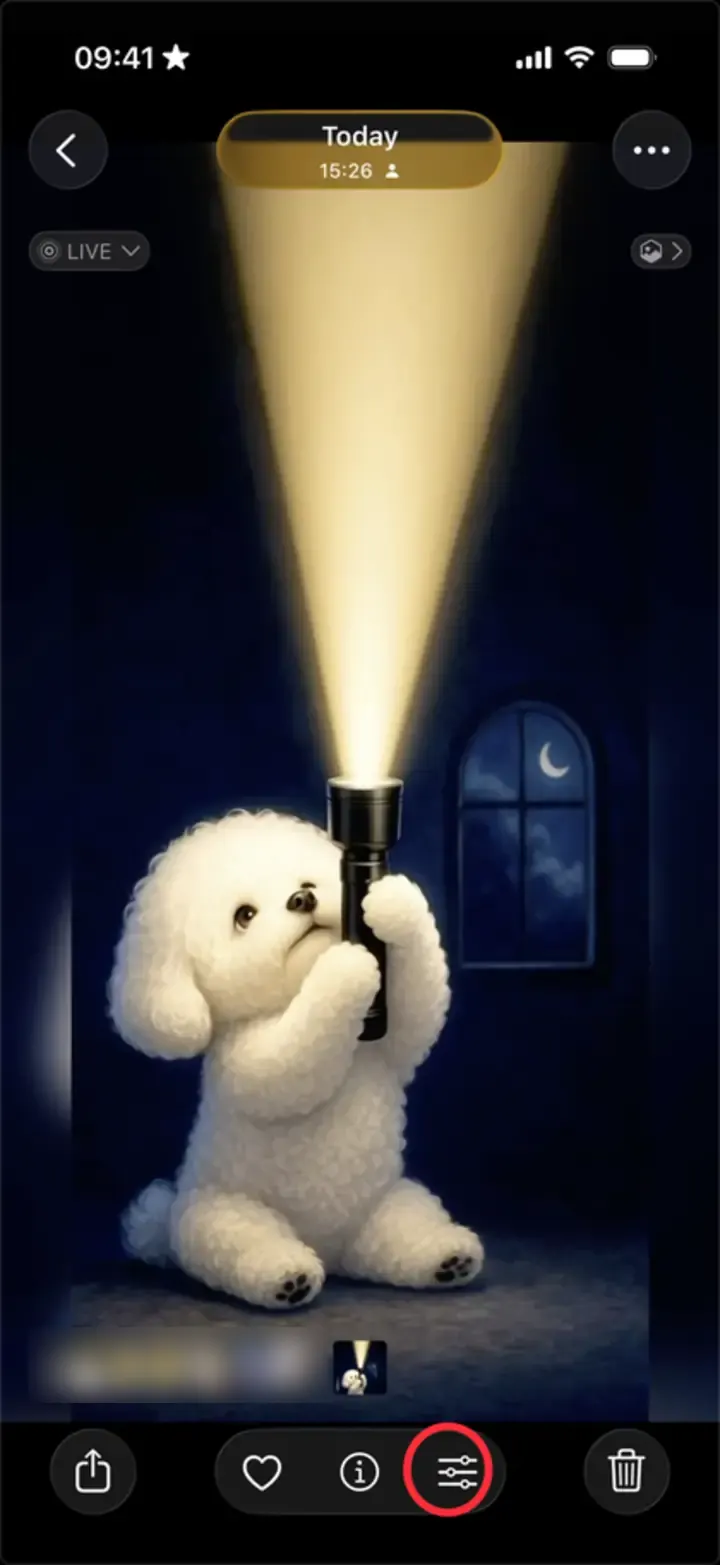
Bottom bar: the sliders icon is Edit. - 3
Drag the filmstrip, then tap “Make Key Photo”
On the LIVE tab, drag the frame strip along a little. Avoid the very first and last frames — aim for the middle third, where there's clear motion on both sides. A “Make Key Photo” button appears above the selected frame; tap it.
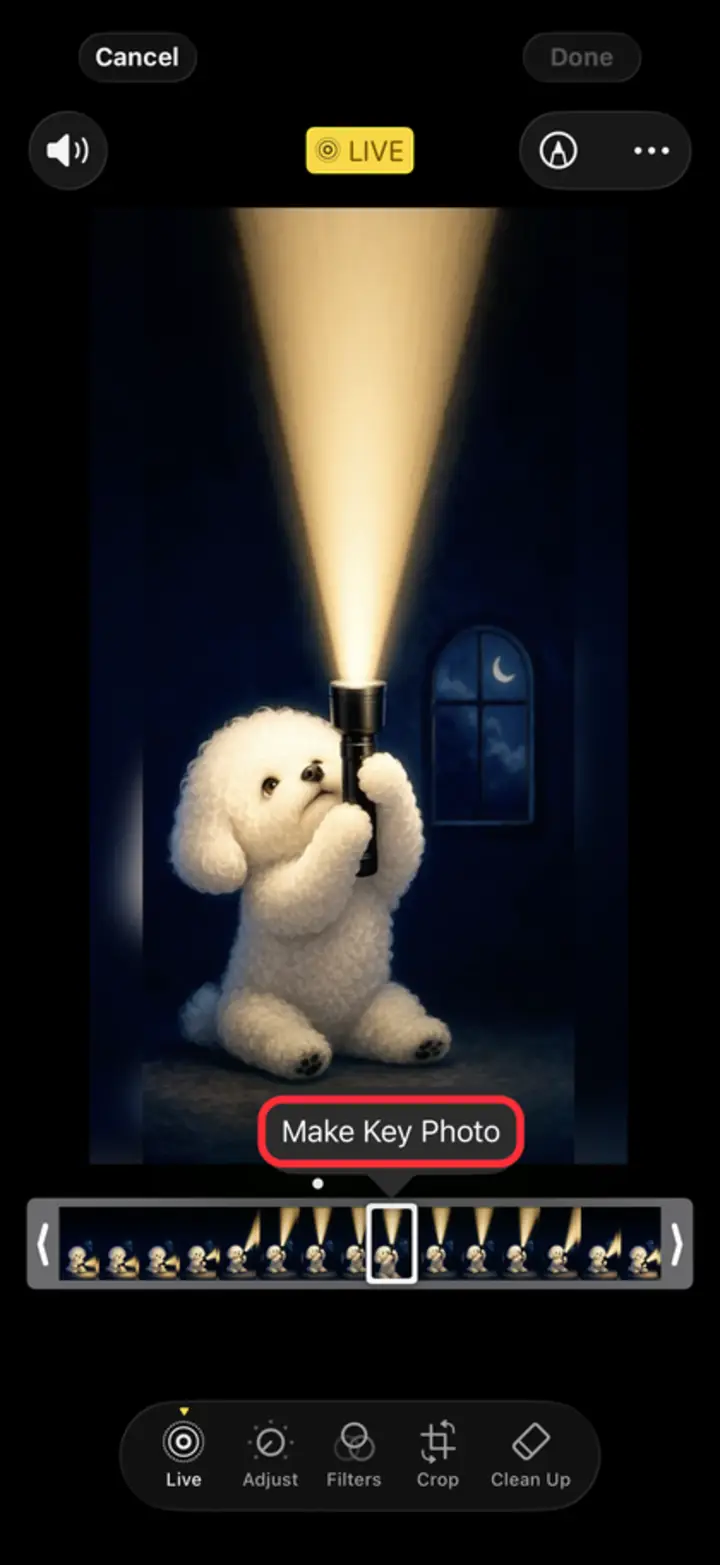
“Make Key Photo” appears above the strip. - 4
Tap Done, then set the wallpaper again
“Done” turns yellow once there's a change to save — tap it. Now set the photo as your wallpaper again, either from Settings → Wallpaper → Add New Wallpaper → Photos or straight from the Share sheet, and the motion toggle will be available.
Still refusing? Different frames pass and fail iOS's check, so repeat steps 3 and 4 with a frame a second or two further along. One or two tries is usually enough.
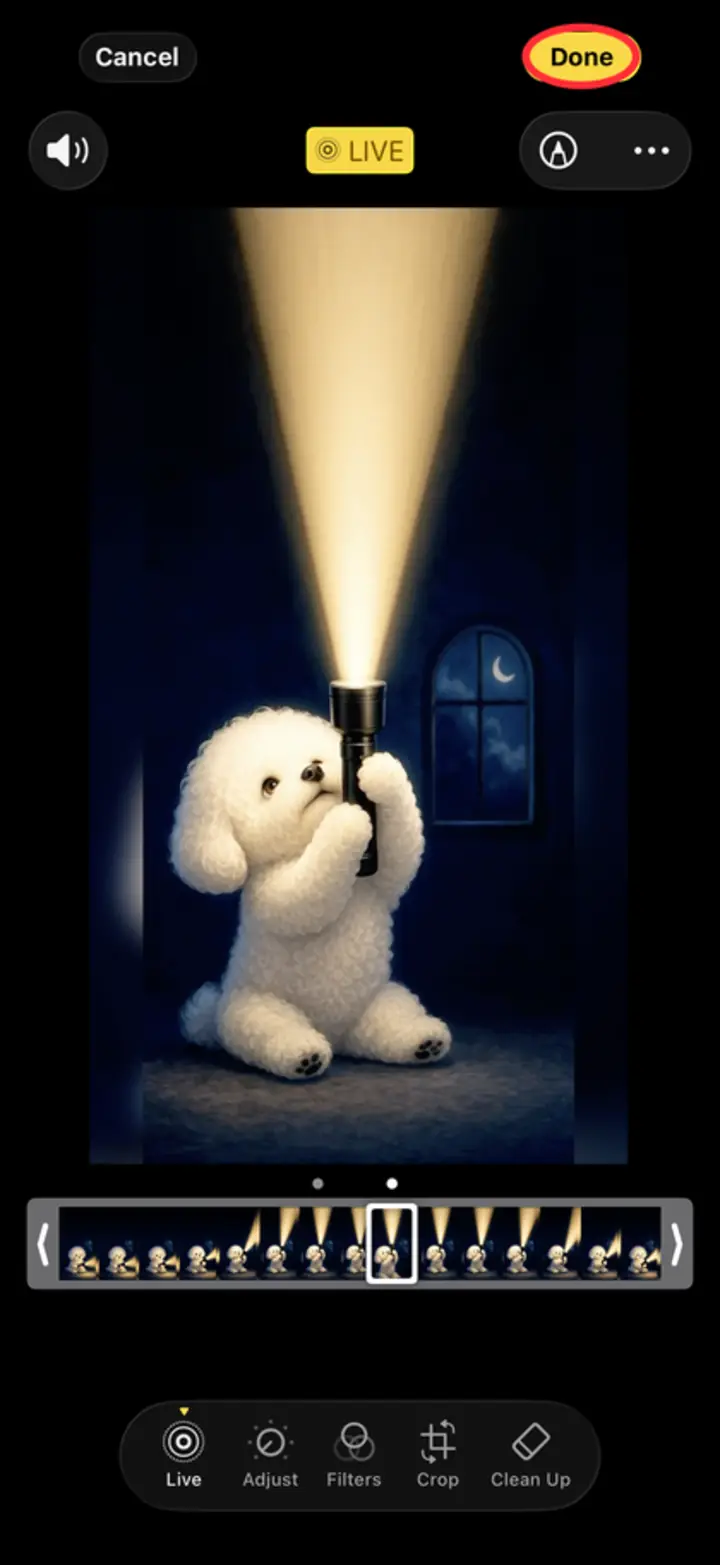
Done turns yellow once there's a change to save.
Why changing the key photo actually works
A Live Photo is two files that travel together: a still image, and a ~3-second video. The “key photo” is the frame that marks where the still sits inside that video.
For the lock screen, iOS doesn't just play the clip — it needs enough usable motion around the key frame to build the wallpaper animation. When the key frame sits at the extreme start or end of the clip (very common in clips that were trimmed, exported from another app, or saved from a screen recording), there isn't enough room on one side and iOS quietly gives up with “Motion Not Available”.
Moving the key photo toward the middle re-anchors the still inside the video and gives iOS the runway it needs. Nothing about the footage changes — you're only telling iOS where the clip's centre of gravity is.
The other things that trigger this error
If a new key photo doesn't fix it, work down this list — these are the remaining causes, roughly in order of how often they're the culprit.
Loop, Bounce or Long Exposure is applied. In the Live Photo editor, effects other than plain “Live” strip out the motion iOS needs for wallpaper. Swipe up on the photo and set the effect back to Live.
The clip is too short. Live Photos trimmed down to well under three seconds often don't have the frames to spare. Re-export at full length.
It's not fully downloaded from iCloud. If the photo lives in iCloud and only a thumbnail is on the device, the motion isn't there to use. Open it, wait for the download spinner to finish, then try again.
Low Power Mode is on. This doesn't cause the error card, but it does stop live wallpapers from animating once set — check Settings → Battery.
It was never a real Live Photo. Video files renamed or shared into Photos, screenshots of a Live Photo, and images from most web converters are still images with no paired clip. Nothing on the iOS side will make them move.
Skip the trial and error — make wallpapers that just work
Hunting for a key frame iOS tolerates is a fine one-off fix, but it's a bad way to build a wallpaper collection. The real problem is upstream: most Live Photos floating around the internet were converted by tools that don't respect what iOS needs from a lock-screen clip.
2Live exports every wallpaper as a proper Live Photo with the key frame already placed where iOS wants it, at full 4K, processed entirely on your device — nothing is uploaded. Drop in a TikTok, a Reel, a screen recording or any video from your camera roll, and what lands in Photos sets as a moving lock screen on the first try. No “Motion Not Available”, no scrubbing the filmstrip.
There's also a library of thousands of ready-made 4K live wallpapers — anime, space, nature, AMOLED — that are already built to the same spec. Pick one, tap save, set it. It moves.
Frequently asked questions
What does “Motion from this Live Photo is not supported as a wallpaper” mean?
It means iOS can use the still image but can't build an animation from the clip attached to it — usually because the key photo sits at the very start or end of the clip, or because a Loop/Bounce/Long Exposure effect is applied. It is not a sign the photo is corrupted.
How do I change the key photo on a Live Photo?
Open the photo in Photos → Edit → tap the Live icon in the bottom toolbar → drag the selector along the filmstrip to the frame you want → tap “Make Key Photo” → Done.
Why does it work for some Live Photos and not others?
It depends on where the key frame sits inside the paired video and how the file was exported. Photos taken with the iPhone camera almost always work; clips converted by third-party tools frequently land the key frame at the edge of the clip, which is exactly what iOS rejects.
Does restarting my iPhone fix “Motion Not Available”?
Rarely — a restart clears the occasional render glitch after an iOS update, but this error is about the file itself, so changing the key photo is the fix that actually sticks.
Why is the Live Photo effect greyed out on my lock screen?
Same root cause, different symptom: iOS can't build motion from the clip, so it disables the toggle instead of showing the error card. Change the key photo as described above and the option becomes selectable again. If it's still greyed out, check that no Loop, Bounce or Long Exposure effect is applied.
Is “Motion Not Available” an iOS 26 bug?
No — it has appeared on every iOS release since Live Photo lock screens launched in iOS 16, and it's a check rather than a bug. Apple has never published the exact criteria, but in practice it comes down to where the key photo sits inside the clip and whether an effect has been applied, both of which you control in the Photos app.
How do I stop this from happening again?
Use a converter that builds Live Photos to Apple's lock-screen spec. 2Live sets a valid key frame automatically when it exports, so wallpapers made in the app set with motion on the first attempt.
Get thousands of free 4K live wallpapers